Launch a Survey from inside a Survey
While completing a survey you may find that another survey also needs to be completed. You can launch this second survey from within the first, complete it, and then be returned automatically to your location in that first survey.
Note
This capability is similar to entering a subform using begin repeat (Repeats). However subforms are included within the main survey whereas here we are starting a completely different survey.
Use cases
Create a survey whose sole purpose is to decide which survey needs to be completed. In this case you can use either the "Parent Form" or the "Child Form" as the question type that will launch the survey. These types are only important when you want to link data between the two surveys for analysis.
Launch a form to enter details on an item that is referenced by your current form. For example fill in a form to record details of a meeting and in that meeting launch a separate "action items" survey as a Child Form to record details on each action item. In your analysis dashboard you will still want to view action items grouped by meeting as well as viewing details on all the action items so they need to be linked.
Launch a form to enter details on an item that will reference your current form. For example to fill in details on a class attended by a student when you are entering the student details. See Tutorial - Launching a Parent Survey for a step-by-step example.
Linking data between the surveys
When you launch another survey you may want to be able to connect the data between the two surveys. This is done by specifying a question in one of the surveys that will hold a key pointing to a record in the other.
Note
If you specify a question to hold a linking key then the relationship between the two surveys is one to many. That is a single record in one of the surveys can be referenced by many records in the other. The question is: which survey has the single record and which has the many? This leads to the concept of a parent survey and a child survey. The parent can have many children but, in this world of surveys, a child can have only one parent.
When launching a new survey you can choose that it be a child or a parent of the first survey. If you are not linking the data between the surveys then it does not matter which one you choose.
Using the Online Editor to configure survey launching
The Online Editor offers good support for launching surveys.
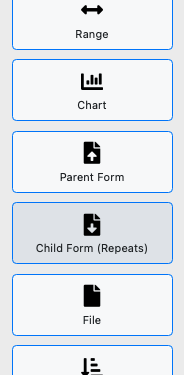
Select the Parent Survey / Form Question Type
You will then be asked to add parameters.
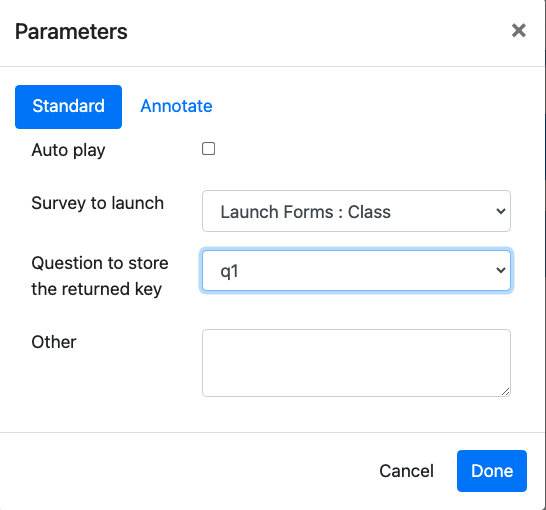
Set the parameters
Select Auto Play if you want the new survey to be launched without the user having to press a button.
Select the survey to be launched.
Optionally specify the question that will store the key of the parent form.
Making use of linkages between Surveys
If you are analysing your data in a Business Intelligence tool then you can join the data using the key question. Alternatively in the console you can drill down from parent survey to child survey or from child survey up to parent survey to see the connected data.
For example if you store the key of the meeting record in a question called meeting_key in the action form then you can retrieve combined data in your dashboard using queries like:
select m.name, a.name, a.assigned from meeting m, action a where m._thread = a.meeting_key;
Hiding the launched surveys on the phone
Often you will not want the user to start up a "launched" survey independently. You can hide launched surveys so that they are not directly visible in FieldTask. To do this go to the survey settings and select "Hide on device".
Passing data to the launched survey
You can specify the initial data that the launched survey receives in the "initial" parameter. For example:
initial=name:${qname},vegetable:parsnip
The format is 1 or more comma-separated value specifications consisting of:
The name of the question in the launched form that is going to receive the default value
A colon separator
The value
This value can be static like "parsnip" in the above example or by using the ${} notation you can specify that the value can be taken from the launching form. In the above example the question called "name" in the launched survey will get its initial value from the question called "qname".
Note
When getting initial data from the launching form you can only refer to data in its top-level form. That is not within a repeating group.
Update an existing Record
Only available with Web Forms.
You can specify the instance of the record to be updated as a parameter called "instance":
instance=${instance_to_update}
You can pass initial data, as described above, which will override the data pulled from the instance.