Server requirements
The install script and infrastructure components support the following base platform requirements:
One of the following Ubuntu LTS Server versions
26.04
24.04
22.04
2GB memory (minimum)
10GB disk (minimum)
Chip architecture: X86 or Arm
For production systems, disk requirements are usually much higher, especially when capturing images and video.
Small
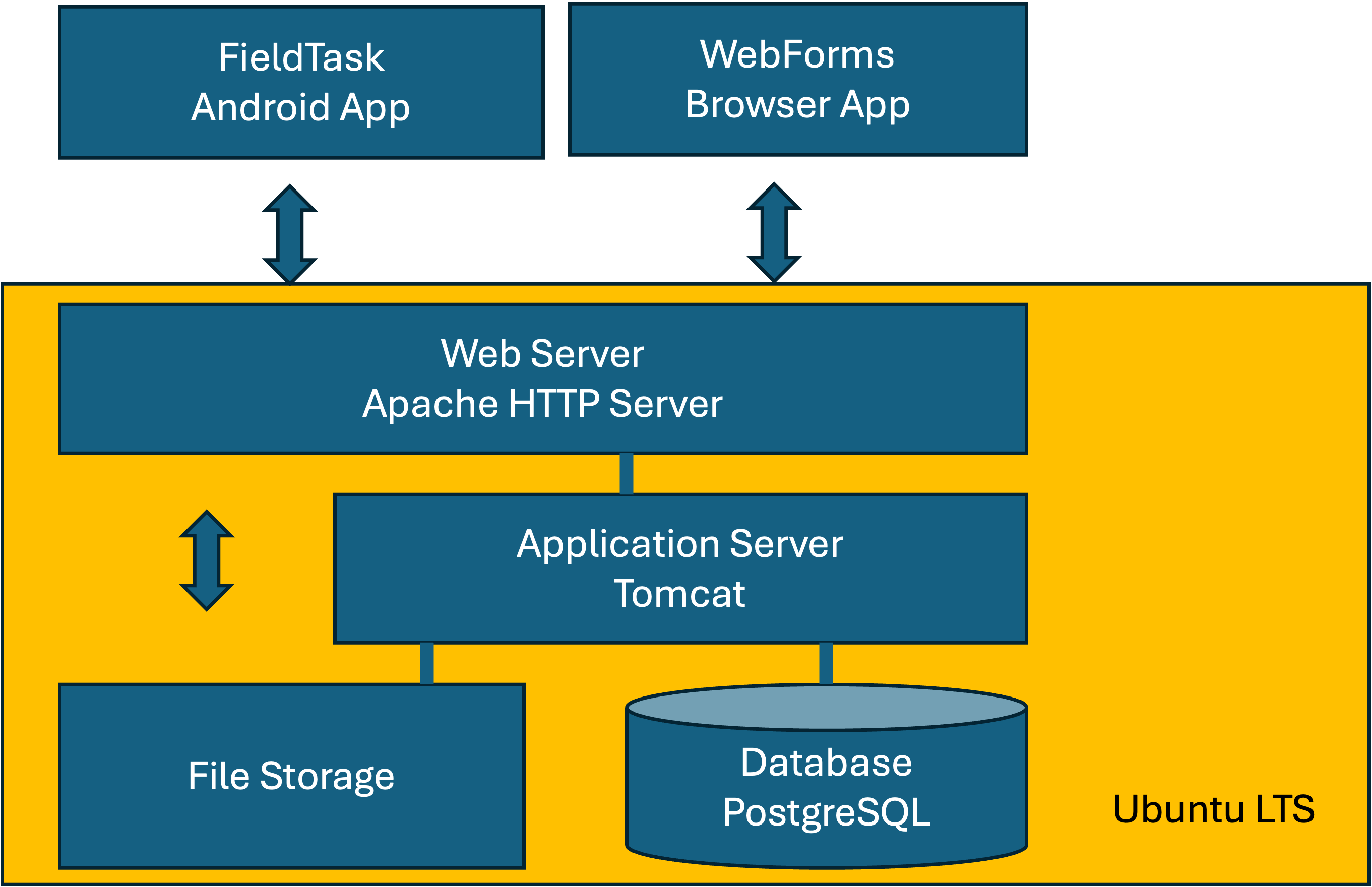
Small single server
The minimum server configuration is:
1 CPU
2GB memory
10GB disk
You will almost certainly need more disk for a production system, especially if you are capturing images and video. Apart from disk, this small server is adequate for most organisations using Smap for M&E.
In postgresql.conf:
max_connections = 400
In Tomcat's context.xml, on both the jdbc/survey_definitions and
jdbc/results resources:
maxActive="60"
Java heap for Tomcat:
JAVA_OPTS="-Djava.awt.headless=true -Xms512m -Xmx768m"
Where each of these files lives, and where JAVA_OPTS has to be set, depends
on how Tomcat was installed. See Tomcat configuration.
Medium
A common vertical scaling step is to add one CPU and more memory:
2 CPUs
4GB memory
100GB disk
You can keep applying this vertical scaling as required. However, at some point, performance is usually better with the database on a separate server, and availability is higher with multiple application servers behind a load balancer. This approach is covered in the large configuration below.
In postgresql.conf:
max_connections = 600
In Tomcat's context.xml, on both the jdbc/survey_definitions and
jdbc/results resources:
maxActive="100"
Java heap for Tomcat (see Tomcat configuration):
JAVA_OPTS="-Djava.awt.headless=true -Xms2048m -Xmx2048m"
Large
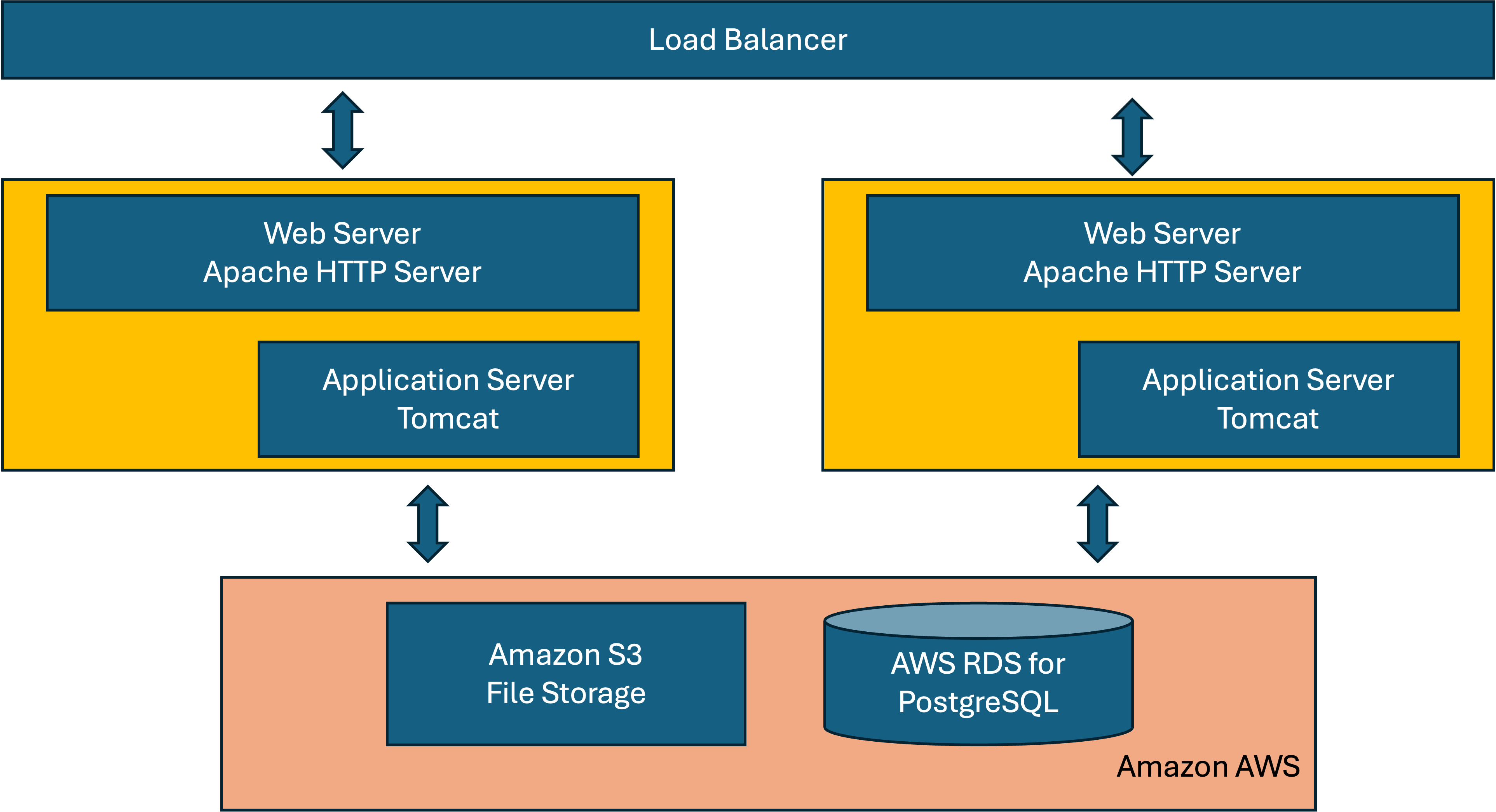
A large configuration
The actual configuration (number of servers, server size, and storage choice) varies by deployment. The diagram shows AWS S3 for storage and AWS RDS for the database. Other installations use Azure Blob Storage.
If you are vertically scaling to a large single server (8GB RAM baseline), use the following starting settings. For a multi-server large deployment, apply these values per application server (8GB RAM per server).
In postgresql.conf:
max_connections = 800
In Tomcat's context.xml, on both the jdbc/survey_definitions and
jdbc/results resources:
maxActive="120"
Java heap for Tomcat (see Tomcat configuration):
JAVA_OPTS="-Djava.awt.headless=true -Xms4096m -Xmx4096m"
With more than one application server, every server opens its own pools, so
check the total against max_connections as described in
Tomcat configuration.
Loading large reference data files
Requires SmapServer v26.09
Shared resource CSV files, including data synchronised from SharePoint and DHIS2, are loaded into the database a batch at a time inside a single transaction. A load that fails part way therefore leaves the previous data in place, rather than a partly filled table that lookups would quietly read as though it were complete.
Batched inserts are considerably faster when the PostgreSQL driver is allowed to combine them.
Add reWriteBatchedInserts=true to the URL of both data sources in context.xml
(see Tomcat configuration for its location):
url="jdbc:postgresql://127.0.0.1:5432/survey_definitions?reWriteBatchedInserts=true"
url="jdbc:postgresql://127.0.0.1:5432/results?reWriteBatchedInserts=true"
New installations pick this up automatically. Existing servers need it added by hand, as
context.xml is not replaced by an upgrade. Loading works without it, only more slowly.
Configuring for a remote database
Add
export DBHOST={remote database address}to/etc/environment.Find Tomcat's
context.xmlfile:/etc/tomcat10/context.xmlon a packaged install,/var/lib/tomcat10/conf/context.xmlon a manual install (see Tomcat configuration). Set the URL for both data sources to match your remote database.Re-run
deploy.sh.
Sample /etc/environment:
export DBHOST=remote_db_server.myorg.com
Sample URL for a resource in context.xml:
url="jdbc:postgresql://remote_db_server.myorg.com:5432/survey_definitions"
Configuring a second application server
If you are using a remote database, you can add additional application servers for redundancy and performance. However, currently only one server can run the subscriber batch job that applies submissions to the database. Otherwise, many false update errors will be reported when multiple subscribers clash.
For all but one application server, set this in /etc/environment:
SUBSCRIBER=no
Set this before installing Smap on the new application server.
Apache2 configuration
Apache uses the mpm_event module. Its configuration is in
/etc/apache2/mods-available/mpm_event.conf. Modify as required, then
restart Apache2. The most important parameter is usually
MaxRequestWorkers.
Example mpm_event.conf file for a high volume server:
StartServers            4
ServerLimit             30
MinSpareThreads         50
MaxSpareThreads         75
ThreadLimit             64
ThreadsPerChild         25
MaxRequestWorkers       600
MaxConnectionsPerChild  0
Tomcat configuration
Two types of Tomcat deployment
Smap runs on Tomcat 10, but it is installed in one of two different ways depending on the Ubuntu version. The two layouts keep their files in different places, and a setting that works on one has no effect on the other, so check which one you have before changing anything.
Packaged install |
Manual install |
|
|---|---|---|
Ubuntu version |
26.04 |
24.04 and 22.04 |
Installed by |
|
Apache tarball unpacked by |
Configuration files |
|
|
Web applications |
|
|
systemd unit |
shipped with the package |
installed by Smap from |
Java options |
|
|
To tell them apart on a running server:
systemctl cat tomcat10 | grep -E "ExecStart|EnvironmentFile"
ExecStart=/var/lib/tomcat10/bin/startup.sh is the manual install. An
ExecStart that runs a packaged start script, together with an
EnvironmentFile of /etc/default/tomcat10, is the packaged install.
Setting the Java heap
The heap sizes given in the Small, Medium and Large sections above are set
through JAVA_OPTS, but the file that holds it differs.
Packaged install. Edit /etc/default/tomcat10:
JAVA_OPTS="-Djava.awt.headless=true -Xms2048m -Xmx2048m"
Manual install. /etc/default/tomcat10 does not exist and is ignored.
catalina.sh instead reads bin/setenv.sh, which is not created by
the installer, so create it yourself:
sudo tee /var/lib/tomcat10/bin/setenv.sh <<'EOF'
export JAVA_OPTS="-Djava.awt.headless=true -Xms2048m -Xmx2048m"
EOF
sudo chown tomcat:tomcat /var/lib/tomcat10/bin/setenv.sh
sudo chmod 755 /var/lib/tomcat10/bin/setenv.sh
setenv.sh is sourced after the systemd unit has set its own JAVA_OPTS
and replaces it, so always include -Djava.awt.headless=true in the value
you set. PDF and image generation fail without it.
Warning
Nothing in the install or deploy scripts creates setenv.sh, and a server
migrated from Tomcat 9 gets a completely fresh /var/lib/tomcat10 with
only server.xml and context.xml carried across. Any setenv.sh
from the old Tomcat 9 tree is left behind, so the heap silently drops back
to the JVM default. Recreate the file after migrating.
patchdb.sh appends the AWS credentials line
(. /smap_bin/setcredentials.sh) to setenv.sh during a deploy, but only
if the file already exists. If you use AWS services from Tomcat on a manual
install, the file has to be there.
Restart Tomcat and confirm the setting took effect:
sudo systemctl restart tomcat10
ps -o args= -p $(pgrep -f org.apache.catalina.startup.Bootstrap) | tr ' ' '\n' | grep -E "^-Xm"
Do not put local settings in
/etc/systemd/system/tomcat10.service.d/override.conf. Smap owns that file
and overwrites it on every deploy.
Database connection pools
Both data sources are defined in context.xml and use the Tomcat JDBC pool
(org.apache.tomcat.jdbc.pool.DataSourceFactory), so the size attribute is
maxActive. Note that this is not the same as maxTotal, which is the
equivalent attribute in the DBCP2 pool used in other examples on the web.
Each application server can therefore hold up to 2 x maxActive connections
open, one pool for survey_definitions and one for results. Keep
PostgreSQL max_connections comfortably above:
(number of application servers) x 2 x maxActive
  + connections used by the subscribers
  + headroom for psql, backups and monitoring
The pools are configured with maxWait="-1", which means a request waits
indefinitely for a free connection instead of failing. A pool that is too small
shows up as pages that hang under load rather than as errors in the log.
Note
context.xml holds the database user name and password, so it is never
replaced by an upgrade. Your edits are safe, but new settings released with
a version of Smap have to be added by hand.
AJP connector
Apache proxies to Tomcat over AJP on port 8009, configured by the connector in
server.xml. The connector does not set maxThreads, so it uses the
Tomcat default of 200 request threads. If Apache MaxRequestWorkers is set
much above that and most of those requests are proxied through to Tomcat, add a
matching maxThreads to the connector:
<Connector port="8009" protocol="AJP/1.3"
    maxThreads="400"
    enableLookups="false"
    tomcatAuthentication="false"
    disableUploadTimeout="false"
    connectionUploadTimeout="36000000"
    connectionTimeout="600000"
    secretRequired="false"
    />
Each busy request thread can hold a database connection, so raising
maxThreads without also reviewing maxActive and max_connections
just moves the queue.
Warning
Unlike context.xml, server.xml is overwritten on every deploy
from config_files/server.xml.tomcat10. Keep a copy of any local change
and reapply it after upgrading, or better, get the change into the Smap
source file.
After editing either file, restart Tomcat:
sudo systemctl restart tomcat10